Keeping your tech alive: maintenance
Now playing: "computer talk" by austenyo
Hello readers! Lovely time to be in the market for new tech, isn't it?
Introduction
If you don't know what I'm referring to: there's currently a global shortage of electronics components affecting almost all kinds of consumer devices, like PCs, laptops, phones, tablets, and gaming consoles. This shortage has mostly affected memory - the place where a computer stores the programs, documents, and other files it's currently using - but has recently extended to storage as well. All computers need memory and storage to work, so the scarcity-driven price increases in these components is getting passed down through all of the electronics that you and I buy.
These shortages aren't (strictly) due to a lack of natural resources or labor, but due to a few industry and political forces. The rapid expansion of AI data centers - a trend not driven by industry [1] or consumer demand [2], but by the Big Tech hype cycle - is the main reason. The massive servers inside of data centers need a *lot* of memory and storage, and the GPUs that NVIDIA is selling like shovels in a gold rush rely on the same memory chips that our phones and laptops need.
Consumer hardware prices are not just taking a hit from increased demand, but also decreased supply. Crucial announced in December 2025 that it was shutting down its consumer memory business segment to focus on selling to AI data center hardware suppliers [3], leaving consumers with fewer affordable memory options. And with the American-Iranian war raising the prices of fuel, shipping RAM chips from silicon chip fabs located in Asia to American computer assembly factories won't get cheaper anytime soon.
All that is to say that electronics are very expensive right now, so keeping our existing tech alive is more important than ever. Extending the life of tech has always been good for the environment, of course, but it's also important for everyday consumers who rely on our devices for work or communication, and who may not be able to afford to repair or replace any devices that break.
I want to do my part in encouraging folks to maintain their technology during these trying times, but I recognize that not everyone who relies on technology knows how to take care of their devices. Computers are easier to use than ever before, to the point where most young folks don't need to learn how they work under-the-hood anymore [4] - which is great, don't get me wrong! But I worry that between lower tech literacy rates and the rise of planned obsolescence, the average person might not know how to solve their own tech issues anymore when they can't just buy a replacement. [5]
My goal with this series of blog posts is to share how you, the reader, can maintain, repair, and refurbish your tech. This first post will be about maintaining your existing devices to keep them in good repair for as long as possible. I understand that most folks don't have a lot of technical knowledge about how their computers work, so I'll try to explain tech concepts as I go along without getting too into the nitty-gritty details that you may not need to know as a regular user.
(Note: For this post, I'll try to provide as many links and references as possible to per-device or per-operating system instructions. However, I won't be able to cover everything. I personally only use macOS and Debian-based Linux operating systems, so I can't verify information for Windows or phone operating systems. If you have a specific source for a kind of device or operating system that could be helpful, email me with it at "me [at] skyebound [dot] gay" and I can incorporate it for future readers.)
Why do I need to do maintenance on a computer?
Computers are tools, and like all tools, they require regular maintenance to perform at their best. Computers may not need oil changes like a car or chain lube like a bicycle, but a few quick steps can still keep them running smoothly.
More and more, computers have been designed to take care of themselves as much as possible. For example, your phone and laptop likely perform automatic software updates, both of the apps you've installed and of the device's operating system (Windows, Android, iOS, etc.). However, your computer can't do everything it needs automatically in software, and it also can't maintain its physical hardware. Following a regular maintenance schedule to fill in the gaps can prevent damage, reduce loading times, and help you recover your files more easily in case something breaks.
Maintenance steps
Keep software up-to-date
The most important step of maintaining any electronic device is updating its software regularly. Software updates often include performance improvements, bug fixes, and security updates, all of which are important for keeping your system running like new.
As I said before, most devices have options to automatically download operating system (OS) and app updates. Windows, macOS, Android, iOS, and many Linux distributions all support automatic OS updates, and many apps can update themselves. However, automatic updates may be disabled by default. If possible, try to enable auto-updates for your device and its apps.
- Windows: Recent versions of Windows automatically install updates. [6]
- macOS: Recent versions of macOS should also automatically prompt you to install updates. However, you can confirm this by opening the System Settings app and navigating to "General" -> "Automatic Updates". Pressing the "(i)" icon will allow you to enable or disable different kinds of automatic updates. [7]
- Linux: As usual, this highly depends on the distribution you're using. For Linux Mint, you can configure automatic updates in the Software Manager app. (If you have information about other Linux distributions, email me at "me [at] skyebound [dot] gay" with info, and I can add it here.)
Another good practice is to apply software updates manually on a regular schedule when automatic updates aren't available. I personally recommend updating your OS and essential applications every six months, or more frequently. This ensures that security updates are applied promptly, keeping your devices safe. However, devices that aren't conencted to the internet may not need to be updated as often.
Clean your devices (physically)
Like all tools, computers need to be cleaned to perform at their best. Screens can get smudged, keyboards can get gummed up with debris, and other high-contact surfaces can get, frankly, gross with consistent use.
Devices with fans - desktops, gaming consoles, and most laptops - especially need to be cleaned often. These devices rely on consistent airflow to keep themselves cool, but dust, lint, and hair can accumulate in airways and trap hot air. High heat can damage electrical components over time and degrade battery life for portable devices. A regular cleaning schedule can keep these devices safe and working for longer.
Most devices and accessories can be cleaned on the outside using a clean microfiber cloth and a small amount of *distilled* water or 70-99% isopropyl alcohol. [8] (Only use distilled water, not tap water or bottled water! Distilled water has been treated to remove trace minerals, which can conduct electricity and damage your device.) Turn off your device and disconnect it from power, slightly dampen your cloth with the water or alcohol, and wipe over all of the exterior surfaces. Be careful to stay away from any ports or inlets, and allow the device to fully dry before powering it back on. You can do this as often as needed, whenever your devices gets visibly dirty.
Phones and tablets only need to be cleaned on the outside, but desktops and laptops should be cleaned internally as well. For this, I recommend a compressed air dusting can or a clean and *dry* microfiber cloth.
For desktops, unplug everything and check if there are any screws on the rear of the desktop that can be removed to open up the case. Once the case is opened, use a compressed air duster or microfiber cloth to gently remove any dust, lint, or hair. Make sure to clean off any fans, air intakes, and heat sinks (blocks of metal with lots of small, thin fins) as these are essential for keeping your device cool. Once you're done cleaning, reattach the side of the case and plug the desktop back in.
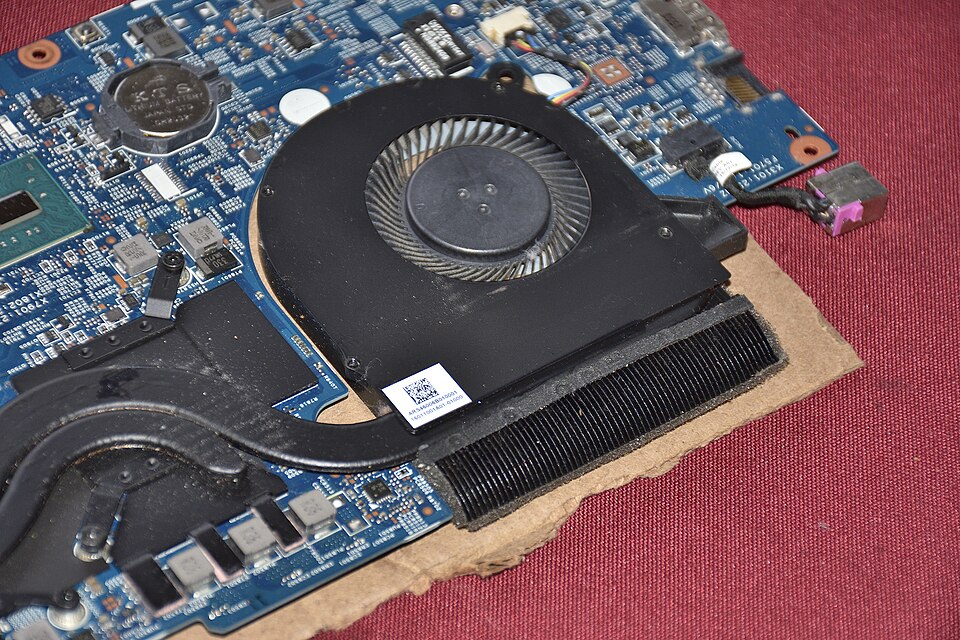
For laptops, I would recommend searching for disassembly instructions on the iFixit website [9]. Some laptops are easy to disassemble, but others are held together with glue and clips that require specialized tools to remove without damaging the device. The iFixit website can share what tools you'll need and how complicated the process is for your specific device. To clean inside a laptop, remove the bottom cover of the shell (i.e., the side that touches the table/lap/etc. when you're using the laptop regularly), then use a compressed air duster or microfiber cloth to gently remove any dust. As with desktops, pay extra care to fans, air intakes, and heat sinks. Once you're finished, reattach the bottom cover by following the disassembly steps in reverse.
Clean your devices (digitally, too)
Most devices generate temporary documents, logs, and other files as you use them. However, devices may not clean up all of these temporary files, even after they are no longer being used. Deleting temporary files can free up extra storage space on your device, which in turn can speed up your computer if you're running low on space.
- Windows: On Windows 10 and 11, you can use the Disk Cleanup app to delete extra files. [10]
- macOS: As far as I can tell, macOS doesn't provide a convenient way to clear temporary files.
- Linux: Linux distributions tend to clean up temporary files automatically. However, one way to save space is to remove unused system packages from uninstalled applications. On Debian-based systems, you can run `sudo apt autoremove` in the terminal to safely remove packages that aren't in use anymore.
- Android: Most Android devices offer tools to clean up old system files and unused apps to free up storage space. [11]
On Windows and macOS, you can also free up space by clearing out your recycle bin. Most operating systems move files to the recycle bin instead of deleting them permanently, so that you can recover files that are accidentally deleted. The drawback of that recovery process is that you have to manually tell the OS when to clear out the recycle bin - like taking the trash out to the dumpster.
- Windows: To empty the recycle bin, right-click on the recycle bin shortcut on the desktop and click "Empty Recycle Bin". [12]
- macOS: To clean your system's deleted files on macOS, right-click the Trash icon in the dock and click "Empty Trash". [13]
Device-specific notes
Desktops
Desktop computers are usually the easiest kinds of computers to maintain. Mobile devices like laptops and phones are often challenging to disassemble and repair without specialized tools, since smaller devices have less room for reusable fasteners like screws and cable connectors.
Additionally, most desktops are made of several removable components, like a Lego set - the internal parts can easily and safely be separated for cleaning, or removed and replaced when damaged. Most desktops follow this model, but not all: Mac desktops, all-in-one desktops with built-in displays, and the new Framework Desktop use an "all-in-one" mainboard where the CPU, GPU, and memory are a single unit.
Most of the previously listed steps apply to desktops, but there's a couple of extra steps that you can take to keep your desktop in good repair. My main recommendation would be to check any of the components with moving parts yearly for failures, since these components can break down faster than purely electronic counterparts.
While your desktop is powered on, inspect all of the fans to make sure that they're running smoothly. (Some desktops automatically turn off their fans when their internal temperatures are low; you may need to run a game, render a video, or do something else intensive to get all of the fans to turn on.) If any of the fans don't spin even under heavy load, they may need to be replaced - but fortunately, fans tend to be the easiest components to replace in any device. I plan to go over the process of replacing fans and other PC components in a future blog posts, but there are a variety of resources on the internet (e.g., [14]) that show how to do this.
Another wear component to check is your desktop's storage drives. Hard drives store your data on several spinning disks, and these disks can wear down over time with continued use. [15] Fortunately, most modern drives automatically report their health to your desktop's operating system in the form of a "SMART report". These reports can tell you whether your disks have had any errors recently, or if they may need to be replaced soon.
- Windows: On Windows, you can run a simple command in the Command Prompt or Terminal apps to check your hard drives' status: "wmic diskdrive get model,status". [16]
- macOS: You can view SMART reports in the "System Information" app. In the right-hand sidebar, select "Hardware" -> "Storage", then choose any of the volumes listed as "Macintosh HD". On macOS, a SMART status of "Verified" indicates that your hard drive is healthy, while "Failing" indicates a mechanical issue. [16]
On the other hand, many newer devices use solid-state drives, or SSDs, instead of hard drives. SSDs don't have any major moving parts, so they tend to wear down much slower. If your device was made in the past several years, then chances are good that it'll be using an SSD instead of a hard drive to store your data.
Computers using an older hard drive on Windows may also benefit from the process of disk defragmentation. This process takes files that are physically stored "far away" from each other on the hard drive platters and moves them closer together, which improves your computer's performance. While macOS has methods to prevent fragmentation from occurring in the first place, Windows installations may need occasional defragmentation if the system is not already configured to run defragmentation on a regular schedule. You should only need to do this once every few years unless you are creating and deleting large amounts of files often.
- Windows: The "Optimize Drives" program can be accessed by searching "defragment" in the Start menu. From there, you can analyze and optimize your system's storage drives. [17]
Laptops
Laptops are essentially miniature desktops with screens, touchpads, and keyboards built in, so they follow the same maintenance procedures as desktops. However, laptops are usually harder to take apart than desktops. Laptop manufacturers have chased the goal of creating smaller, lighter, and thinner devices for decades now, and in that pursuit, reusable fasteners like screws have been replaced with clips and glue. Some laptops also use specialized kinds of screws that can't be loosened with a standard Phillips or flat-head screwdriver, such as Torx screws.
iFixit, one of the largest repositories of electronics repair guides, sells a variety of niche tools for opening up laptops and other mobile devices. [9] I personally use their Essential Electronics Toolkit ($25 USD) to work on my own devices. [18] However, your local makerspace, repair cafe, or gaggle of tech-oriented friends may have a kit that you can borrow at little or no cost.
The main additional maintenance item for a laptop is its battery. All batteries lose capacity over time, which is why old laptops and phones may not hold a charge as well as they did right out of the box. Fortunately, almost all laptops can have their batteries replaced, giving them a second life. Windows and macOS give you convenient ways to check the "health" or age of your batteries so that you know whether they need replacing.
- Windows: The easiest way to check your battery's health on Windows 10 or 11 is by using the PC Health Check app. You may need to install this app from Microsoft's app store if it isn't already installed on your system. [19]
- macOS: On macOS, you can check your battery health by opening the System Settings app and navigating to "Battery". [20]
Phones and tablets
Phones and tablets are a bit of a unique case for tech maintenance. As fully-sealed mobile devices, they are nigh impossible to take apart without specialized tools. Luckily, phones and tablets don't need to be disassembled for routine maintenance - they don't collect dust or dirt inside, and they don't have any moving parts that need to be inspected or replaced.
The Android and iOS phone operating systems also tend to give the user less control over their own devices than Windows or macOS. This simplifies the maintenance process a bit, since the operating system handles some maintenance tasks on the user's behalf.
Out of the items written above, I would recommend following these tasks for phones and tablets:
- Perform updates regularly, and enable automatic updates too if possible.
- Clean the exterior of your device regularly (even if the interior can't get dusty). In particular, you may want to clean your device's ports to prevent them from getting clogged up. [21]
- Remove unused apps and old system files to free up space.
I also recommend purchasing a durable case for your phone or tablet. Mobile devices get more and more expensive every year, so the cost of a decent case is only a fraction of the cost of replacing a phone. This is one place where an ounce of prevention can be worth several pounds of cure.
Other devices
Remember: your gaming consoles, internet routers, network storage devices, and other home gadgets are computers too! While few of these devices provide software maintenance tools, they can still benefit from regular cleaning, inspection of moving parts like fans, and battery replacements if applicable.
Conclusion
This probably seems like a lot of steps - and it is. However, sticking to a regular maintenance routine will keep your devices running happily for much longer.
In my next blog post of this series, I'll share how to diagnose issues with desktops and laptops so that you can repair them yourselves.
Image "laptop-heatsink.jpg" is licensed from Wikimedia Commons user SAF1999 under the Creative Commons BY-SA 4.0 license.
CC BY-SA 4.0 license text (HTTP)
Published .